
Vowise feature map
Understand what Vowise helps you do: record, transcribe, organize, review, create content, use multiple platforms, and tune settings.
- Audience
- Users and teams who need to understand everything Vowise can currently do before choosing a workflow.
- Time
- 24 minutes
- Level
- All levels
Scenario
Start with the workflow this guide is designed for before moving into the steps.
As a team lead evaluating Vowise, I want one feature map so I can choose the right workflow for meetings, notes, reviews, drafts, settings, and integrations.
You can name the major feature families, know where each one lives, and decide which tutorial to open next.
Feature tour
Preview the relevant screens and short guide before following the steps. This section highlights the entry point, expected result, and next path.
2
Guide items
1
Screens
1
Video
Platform feature map
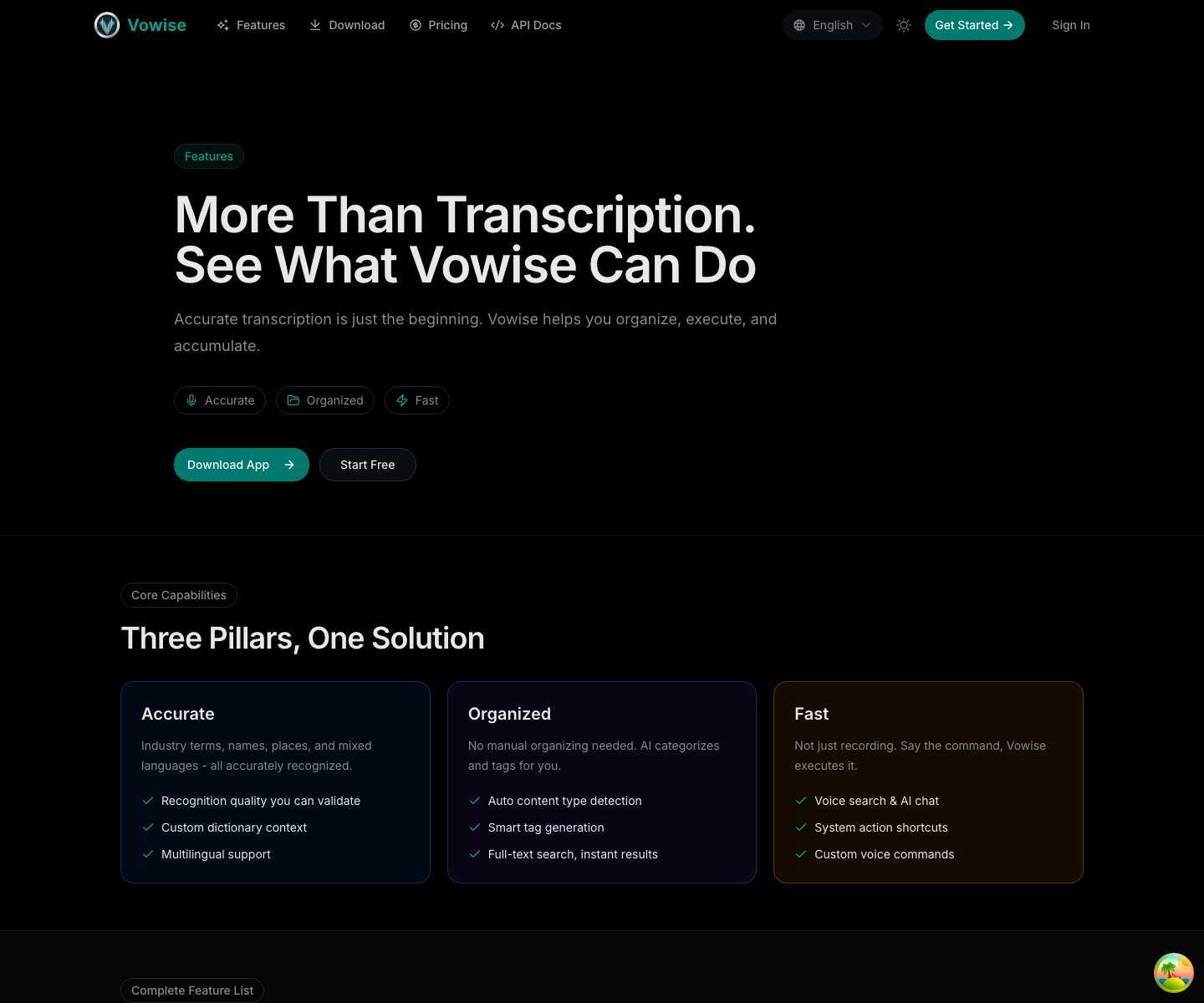
Feature map tour
Steps
Start with capture and transcription
The most reliable public path is still capture audio, transcribe it, optionally optimize it with AI, and save it as a searchable record.
Separate shaping tools from review tools
Templates, dictionary entries, and AI optimization shape the output. Journal review, AI Chat, memory, and content creation help you reuse the output.
Match the feature to the right surface
Web, desktop, mobile, API, and Shortcuts are built for different jobs. Use desktop for long capture, mobile for quick notes, web for review, and API or Shortcuts for repeatable flows.
Details
Core workflows
Most users start with the same loop: capture something, turn it into text, clean it up, save it where it can be found again, and decide whether it should become review material, reusable knowledge, or content.
- Audio capture, upload, transcription, and saved records.
- Mobile capture and the mobile floating-ball action wheel for search, AI Chat, Journal, and Favorites.
- AI optimization for punctuation, structure, title, tags, and cleaner output.
- Prompt templates for repeated formats such as meeting notes, tasks, journals, briefs, and summaries.
- Record management: naming, search, grouping, favorites, and reusable transcript history.
- Capture Library, Vowise Capture for Chrome, clipboard sync, media sync, captions, and source-backed references.
- AI Chat, live AI conversations, AI Memory, and assistant context.
- Journal, Awareness Log, period summaries, remarks, triggers, and daily reflection loops.
- Content Studio, scheduled topics, generated drafts, image/media review, API keys, Shortcuts, and automation triggers.
Workflow wireframe
Use this map to see how records move through Vowise. The arrows show the usual path, not a required order.
flowchart LR
  Capture["Capture\nDesktop, mobile, browser, upload, clipboard"] --> Record["Record\nTranscript, title, tags, source"]
  Record --> Shape["Shape\nTemplates, dictionary, AI cleanup"]
  Shape --> Review["Review\nJournal, summaries, Awareness Log"]
  Record --> Reuse["Reuse\nFavorites, Capture Library, AI Chat"]
  Reuse --> Create["Create\nContent Studio, drafts, scheduled topics"]
  Review --> Create
  Settings["Settings\nPermissions, keys, memory, sync"] --> Capture
  Settings --> Reuse
Capability matrix
Use this matrix when you are not sure which guide to open next.
| Job | Primary surface | Main capabilities | Start with |
|---|---|---|---|
| Capture a voice note or meeting | Desktop, mobile, web | Recording, import, language, pause/resume, transcription | First recording or Mobile capture |
| Improve transcript output | Web, desktop settings | Templates, custom dictionary, AI optimization, title and tags | Prompt templates or Custom dictionary |
| Find and reuse a record | Web console | Records, search, filters, Favorites, source links | Manage records or Favorites |
| Save outside references | Chrome extension, web, mobile share/import | Capture Library, AI tags, saved sources, clipboard material | Capture Library |
| Review a day or period | Web, mobile | Journal, media captions, period summaries, Awareness Log, Remarks | Review Journal, Media summaries, Awareness Log |
| Ask AI with context | Web, record detail, mobile handoff | AI Chat, live AI conversations, AI Memory context | AI Chat records or Live conversations |
| Create public or team content | Web console | Content Studio, scheduled topics, drafts, generated images, source review | Content creation or Content Studio |
| Automate or integrate | API, Shortcuts, settings | API keys, shortcuts, voice commands, triggers, and platform workflows | API keys or Automation triggers |
How features connect
Each feature has a job. Dictionary and templates improve the current output; journal, chat, memory, and content creation help you reuse the result later.
- Custom dictionary is useful for names, acronyms, and product terms, but users should validate it with real samples.
- AI Chat is useful when you want to ask questions about a record or a saved source.
- AI Memory is for durable preferences and context, not every temporary thought.
- Journal, Awareness Log, and media sync help connect daily reflection with photos, notes, and follow-up actions.
- Remarks make Awareness Log concrete: a quick voice or typed note turns vague activity into a usable statement of what you were actually doing.
- Clipboard sync is for copied text, links, snippets, clipboard images, and translation; photo/video media sync stays in the Journal/media path.
Platform-specific surfaces
Some controls only make sense on one platform. The docs should tell users which surface to open instead of implying every setting is everywhere.
- Desktop: global hotkeys, microphone/audio device, sound feedback, theme, API key, voice commands, and cross-platform account settings.
- Chrome extension: toolbar capture for the current page, right-click capture for selected text, links, and images, and a direct path back to Capture Library.
- Mobile: profile, app language, recording language, plan and usage, media sync, memory, task integrations, privacy, device settings, developer keys, and data controls.
- Web console: Playground, Records, Favorites, Journal, Content Creation, Credits, Invites, API Keys, Orders, and Memory. Capture Library stays in native clients and is only exposed on the Web to approved administrators.
Choose the next tutorial
If you are new, continue with your first recording. If you already recorded something, open settings, templates, dictionary, or review based on the result you want.
- Need better spelling? Open Custom Dictionary.
- Need a different output format? Open Prompt Templates.
- Need to reuse the record later? Open Journal, AI Chat, Capture Library, or Content Creation.
Connected feature paths
This tutorial should not dead-end. These are the natural next features and workflows it connects to.
Configure the right settings
Use the settings reference before changing capture, AI, billing, or integration controls.
Try a first recording
Use a safe short sample to learn the capture-to-transcript loop.
Choose a platform workflow
Decide when to use desktop, mobile, API, or Shortcuts.