
Save references to Capture Library
Collect web pages, selected text, links, images, notes, and references with Vowise Capture so they can support later review and creation.
- Audience
- Researchers, creators, and operators who save external context from the browser around voice notes.
- Time
- 13 minutes
- Level
- Beginner
Scenario
Start with the workflow this guide is designed for before moving into the steps.
As a researcher, I want to save an article, selected passage, link, or image from Chrome beside my voice reflection so the source and my thought stay connected.
You can install the Chrome extension, save a source through the toolbar or right-click menu, add context, and connect it to review or content creation.
Feature tour
Preview the relevant screens and short guide before following the steps. This section highlights the entry point, expected result, and next path.
2
Guide items
2
Screens
0
Video
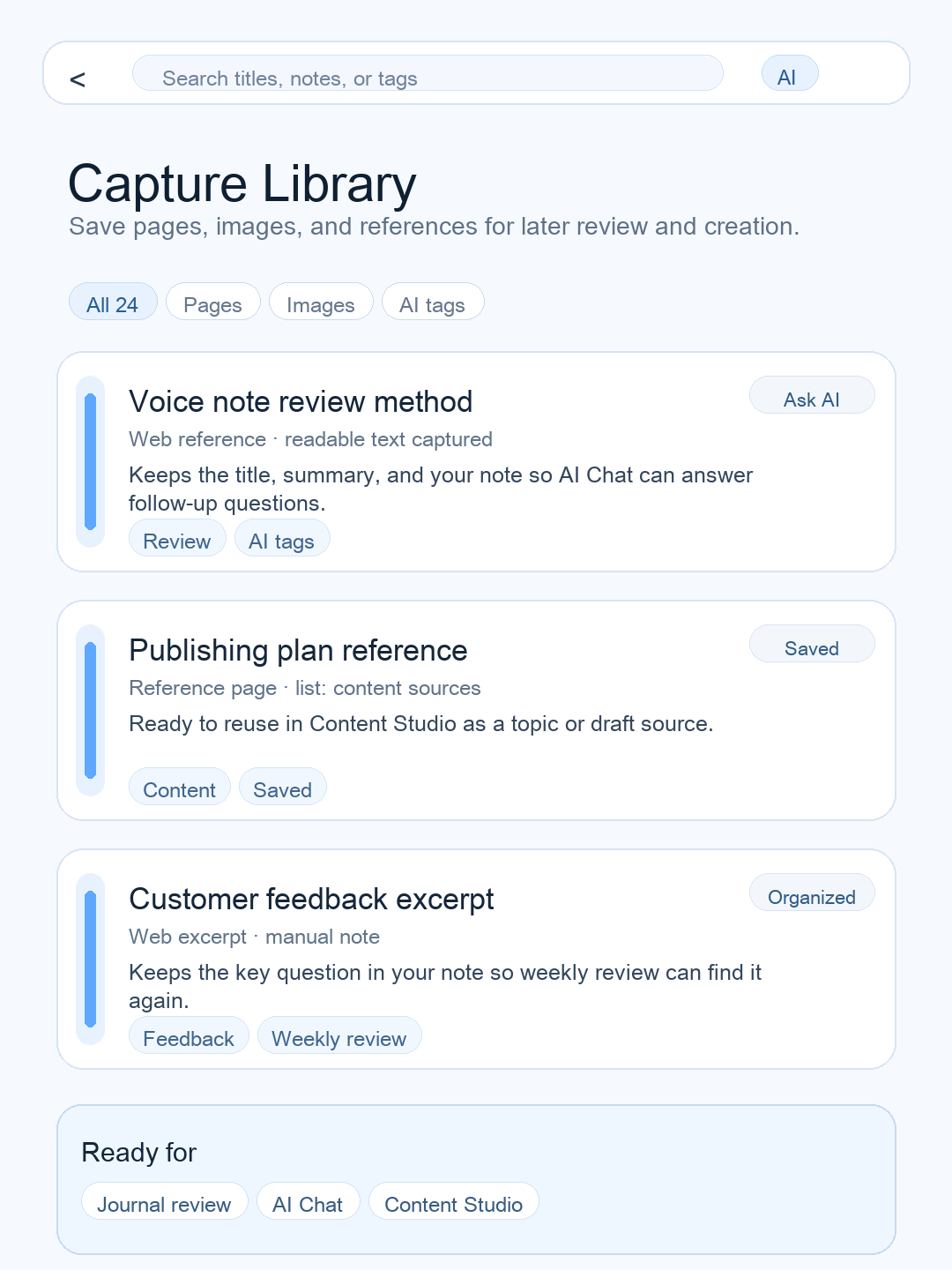
Mobile saved-reference list
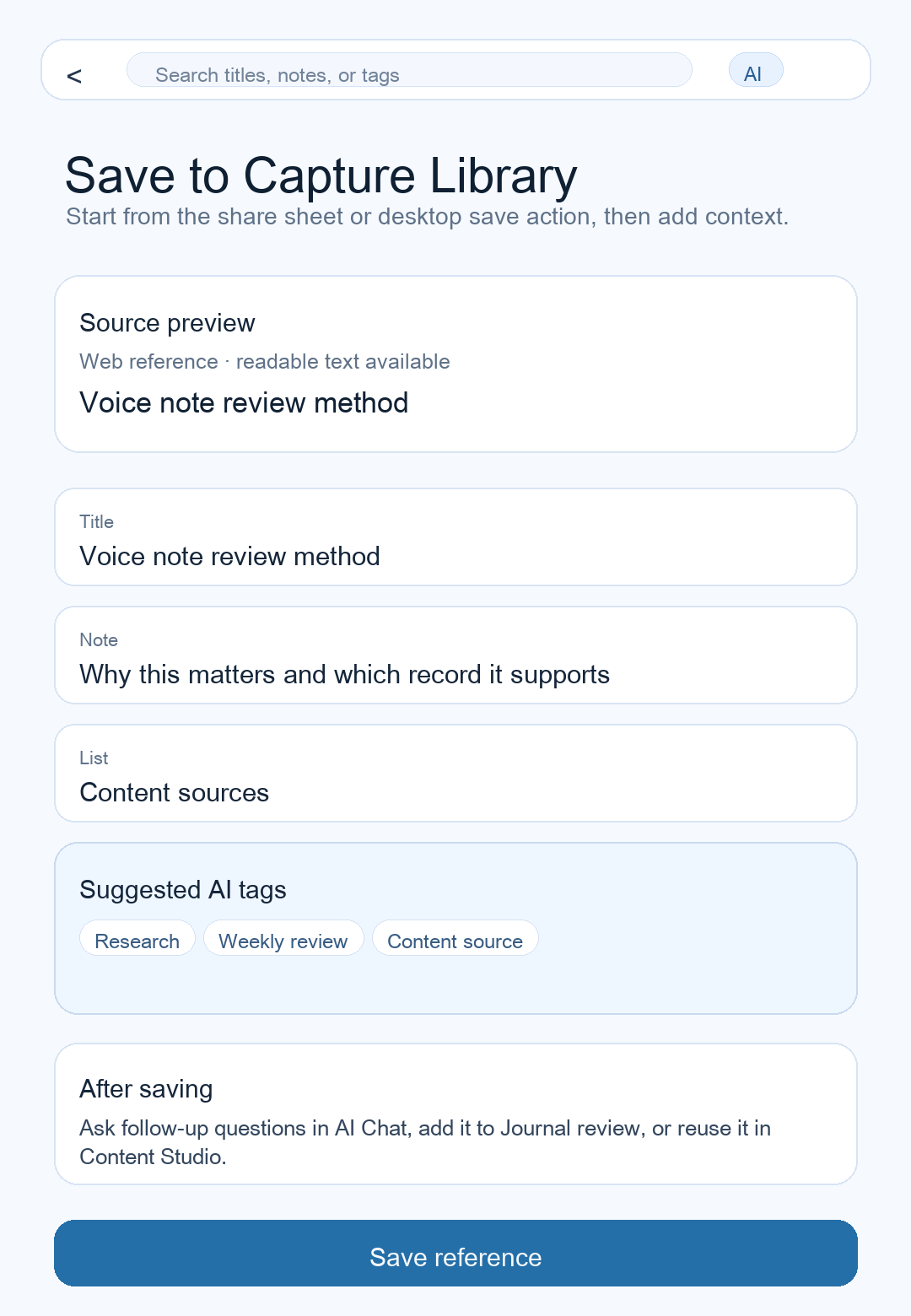
Mobile save action example
Steps
Choose a save path
Install Vowise Capture from the Chrome Web Store when you want browser capture. Use the toolbar button for the current page, or the right-click menu for selected text, links, and images. Mobile share sheets and desktop save paths can send notes or sources into Vowise; approved administrators also have a protected Web surface. Ordinary Web accounts do not see Capture Library. If readable content is unavailable, keep the link and your note.
Organize lightly
Add a list, tag, or favorite only when it will help future retrieval. If Vowise suggests tags automatically, treat them as retrieval hints and edit the ones that do not match your intent.
Use it in a downstream task
Connect the saved reference to a journal review, AI chat question, or content draft.
Details
Capture Library is not a dumping ground
Save fewer references with better intent. Each saved item should answer why it matters later.
- Use lists for durable themes.
- Use tags for cross-cutting retrieval.
- Use notes for personal interpretation.
Use Vowise Capture in Chrome
Vowise Capture is the browser extension entry for Capture Library. It uses your active Vowise web session, so the normal flow is: sign in to Vowise in Chrome, install the extension, capture from the toolbar or right-click menu, then review the saved item in a native Vowise client. Approved administrators may use the protected Web surface; ordinary Web accounts do not receive a Capture Library entry.
- Use the toolbar button when the current page is the source.
- Use the right-click menu for selected text, links, and images.
- Add a short note while the context is still fresh.
- Open Capture Library in a native client after saving to organize, review, and reuse the source.
- Public discovery files do not advertise the protected Web product name or route; this tutorial documents the native and integration workflow only.
Share to Vowise and auto tags
Capture Library works best when collecting is fast and cleanup is light. Use share-to-Vowise paths for the source, then let tags help retrieval without replacing your own judgment.
- Use the share sheet or save action for pages, notes, images, and references.
- Auto tags are suggestions for search and grouping, not final labels.
- A saved reference can later support AI Chat, Journal review, or Content Studio drafts.
Connected feature paths
This tutorial should not dead-end. These are the natural next features and workflows it connects to.
Install Vowise Capture
Open the download page and add the Chrome extension before saving browser sources.
Attach reference to a draft
Use saved references as source material for content creation.
Ask about the source
Use AI Chat to turn a saved source into questions and next actions.
Save reusable moments
Use Favorites for selected ideas, decisions, and actions that come from records or saved sources.