
Use Awareness Log
Connect daily actions, habits, practice sessions, Remarks, triggers, and journal review into one reflection workflow.
- Audience
- Users who want to start, pause, stop, describe, and review daily activity records from the app, widgets, Live Activities, Journal, or Shortcuts.
- Time
- 16 minutes
- Level
- Beginner
Scenario
Start with the workflow this guide is designed for before moving into the steps.
As a self-review user, I want the right Awareness Log trigger to open the exact daily record I need without losing the timer, date, or review context.
You can choose the right trigger, use Remark to describe what you are actually doing, control an active timer, open dated records from Journal, and decide what becomes a task, habit, memory, or longer reflection.
Feature tour
Preview the relevant screens and short guide before following the steps. This section highlights the entry point, expected result, and next path.
2
Guide items
2
Screens
0
Video
Android Awareness Log example
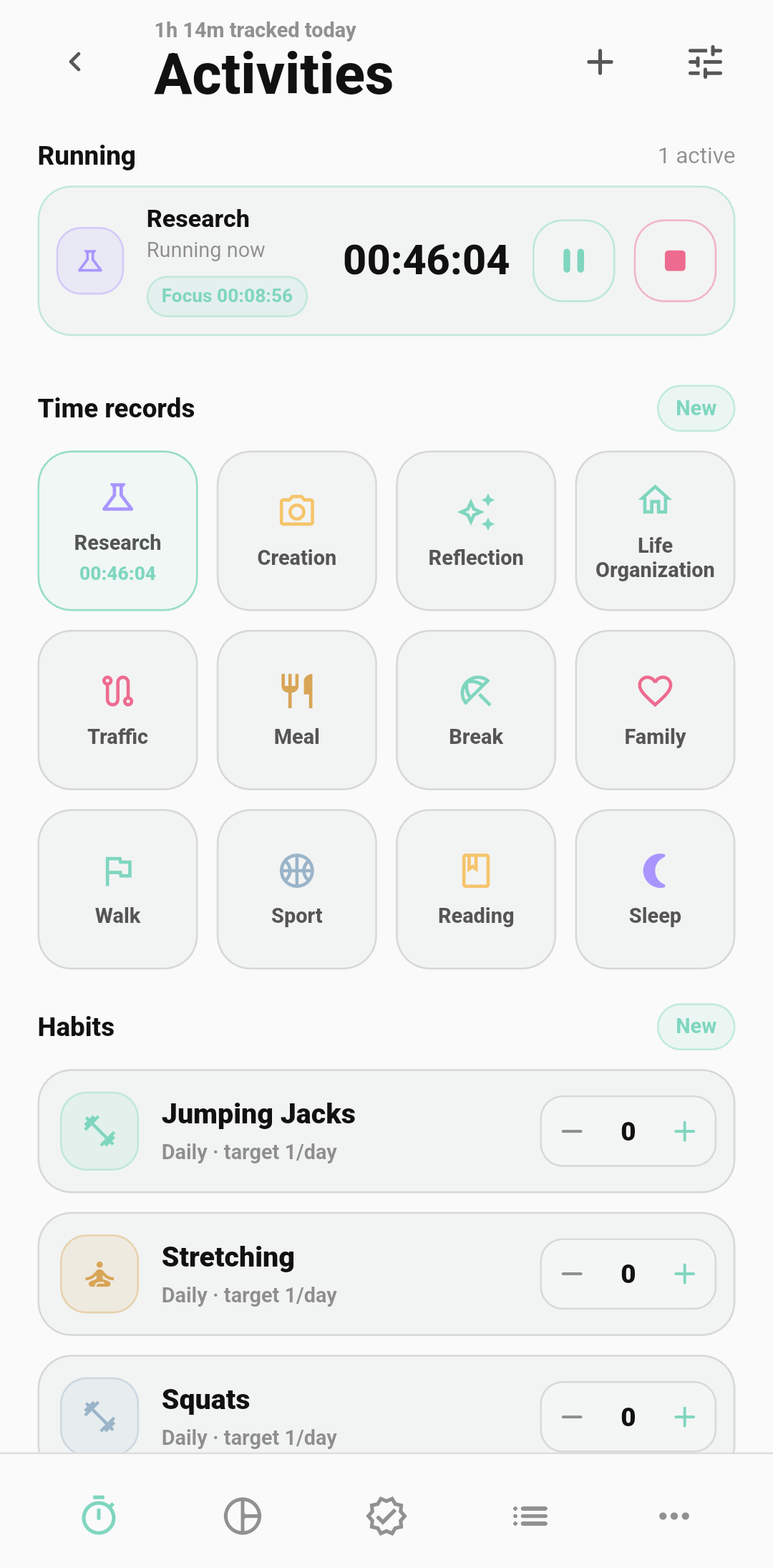
Floating timer example
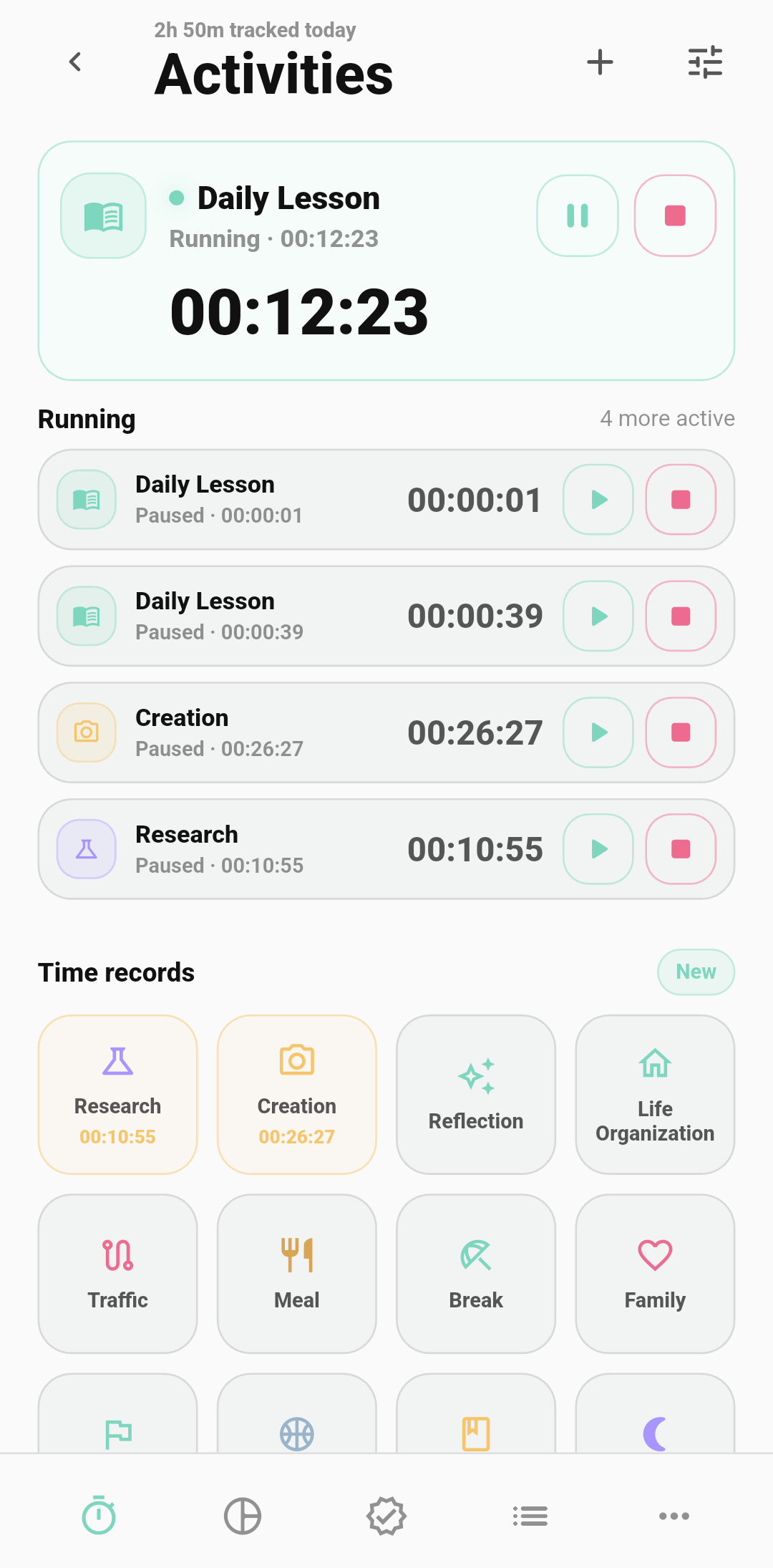
Steps
Choose the trigger source first
Use the normal Awareness Log page when you are reviewing manually. Use the mobile widget for quick open, the Android ongoing notification or iOS Live Activity for a running timer, Journal for a dated review, and Shortcuts or deep links only when you want a repeatable external action.
Create one activity from the day
Open Awareness Log and add the smallest useful record: a timed activity, a habit check-in, a practice session, or a task you want to remember. The activity type names the mode, such as Research or Creation; the Remark will describe the specific thing you are doing inside that mode.
Use Remark to make the activity concrete
Remark answers the question: what am I actually doing right now? Tap the Remark field and type one or two lines, or use the microphone to dictate a quick voice note. This is the easiest way to turn a broad activity such as Research, Creation, Practice, or Break into a concrete record you can understand later.
Control the active timer from any surface
When a timer is already running, use the notification, Live Activity, floating timer, or Awareness Log page to pause, resume, toggle, or stop it. Open is safe for inspection; stop writes the finished interval; pause keeps the record active but not counting time.
Open records and filter the period
Use the records trigger when you want a date or period to open directly. Journal can open the matching day, week, month, or year, and advanced links can include date, entryDate, period, startDate, or endDate before you filter by kind, group, status, tag, search text, or duration.
Add tags, group, and status after the Remark
For a timed record, confirm the start and end time. For a running record, edit the start time first and adjust intervals after it is paused or stopped. Use tags, group, status, place, or duration details only after the Remark has captured the real context.
Use the view that answers the question
Use the list for detail, pie view for category mix, calendar for consistency, bar view for totals, timeline for order, and grid view for quick scanning.
Review it inside Journal
Open the matching daily, weekly, monthly, or yearly Journal entry. Vowise can show an Awareness Log module for the same period, separate from notes, photos, voice input, AI facts, and summary. If you need to inspect the raw records, use the Journal entry point to open Awareness Log with the same date range.
Use advanced links only for repeatable workflows
For Shortcuts, widgets, or another trusted launcher, use the Awareness Log link format only after testing it once with non-private content. Keep open for navigation, start for a new activity, records for review, and pause-active, resume-active, or stop-active for an existing active timer.
Details
What Remark means
Remark is the concrete description attached to an Awareness Log entry. The activity type says the lane you are in; the Remark says what is actually happening inside that lane.
- Research can become: comparing onboarding feedback from three users.
- Creation can become: drafting the docs page for Awareness Log triggers.
- Practice can become: shadowing one English lesson and marking difficult sentences.
- Break can become: walking outside without looking at the phone.
How to capture a Remark quickly
You do not need to interrupt the activity for a long journal entry. Open the Remark field, type a short line, or tap the microphone and speak naturally. The transcript is appended into the Remark so the timer keeps its specific context.
- Use Remark on start when you want to set intention before the timer runs.
- Use Remark on stop when you want to summarize what actually happened after the session.
- Activity types can enable Remark on start or Remark on stop individually; Research and Creation are good examples because their names are too broad without detail.
- Remark suggestions reuse previous lines for the same activity. Hiding a suggestion only removes it from candidates; it does not delete past records.
Trigger sources
A trigger is simply an entry point that opens Awareness Log with an intended action. Most users do not need to memorize link syntax; choose the surface that matches the moment.
- Awareness Log page: open, create, edit, filter, export, and review manually.
- Mobile widget: quick open from the home screen without changing the record.
- Android ongoing notification and iOS Live Activity: control the active timer from the lock screen or notification surface.
- Journal: open the same day, week, month, or year so review and raw records stay aligned.
- Shortcuts or deep links: build repeatable personal automation after the manual path is clear.
Action reference
These are the actions a trigger can request. Treat them as user-facing commands, not background magic.
- open: opens Awareness Log and changes nothing.
- start: starts a new timed activity; activityTypeName can preselect the activity name when the launcher knows it.
- records: opens the records view; date and entryDate target one day, while period with startDate and endDate targets a week, month, or year.
- toggle-active: switches the active timer between counting and paused when you do not care which state it is currently in.
- pause-active and resume-active: precise controls for the current active timer, useful from Live Activity or notification buttons.
- stop-active: finishes the active timer so the interval can be reviewed and edited later.
The four activity kinds
Awareness Log brings four daily activity kinds into one place. They share the same list and review flow, but each kind can have its own detail behavior.
- Time record: what you did and when it happened.
- Habit: a repeated behavior you want to notice or maintain.
- Practice: training, study, rehearsal, or deliberate improvement.
- Task: an independent action item, not a habit subtype.
Records, filters, and export
The records surface is for analysis, not just storage. Use it to narrow a period, compare activity kinds, search Remarks, and export the subset that supports a review.
- Filters can include type, kind, group, status, tag, search text, Remark text, and duration.
- Views can include list, pie, calendar, bar, timeline, and grid.
- History rows and CSV export keep the Remark with the activity, so later review is not just a duration total.
How Journal uses Awareness Log
Journal can include Awareness Log records from the same period as structured context. This does not replace notes, photos, voice inputs, key facts, or the AI summary, and it does not mean every timer must become a journal paragraph.
- Daily journals use the same day.
- Weekly, monthly, and yearly journals use the matching date range.
- If the module is empty, create or sync Awareness Log records first.
Sync and safety boundaries
Triggers open or control the local Awareness Log workflow. Cross-device availability still depends on account, plan access, sync being enabled, and the device finishing its normal save or sync cycle.
- Automatic Awareness Log sync can keep Premium devices aligned, but a trigger is not a sync proof by itself.
- If a dated Journal entry shows no module content, open Awareness Log records for the same period and check whether records exist locally first.
- For sensitive activity names, prefer open and manual selection over a shared Shortcut that exposes activityTypeName.
- If a deep link uses an unknown action, Vowise falls back to opening Awareness Log so you can recover manually.
Connected feature paths
This tutorial should not dead-end. These are the natural next features and workflows it connects to.
Understand triggers
Use the broader trigger guide when Awareness Log is part of a voice, widget, Shortcut, or automation flow.
Choose a platform path
Compare mobile, desktop, API, and Shortcuts before wiring the trigger into daily use.
Review in Journal
Use Journal when the trigger should open the same day, week, month, or year for reflection.
Use API or Shortcuts
Build repeatable personal launchers only after the manual Awareness Log flow is reliable.